WooCommerce
Veritally for WooCommerce: install it and find missing COD and Razorpay money, step by step
By the Veritally team · Updated · 6 min read
Quick answer
Download the plugin zip from veritally.in/woocommerce, upload it under Plugins > Add Plugin > Upload Plugin and activate it. Open WooCommerce > Veritally, tick the box and connect, read your orders, add your gateway settlement report and your courier COD report, and press Find missing money. It takes about five minutes and the leak scan is free.
Key points
- You need a WordPress admin or shop manager login, and WooCommerce active.
- No passwords or API keys: you connect with one click from inside WordPress.
- Only order numbers, dates, amounts, status and payment method leave your store. Never customer names, phones, emails or addresses.
- Reports you add are read in your browser; customer details in them are removed before anything is sent.
- The leak scan shows the total by type for free. A plan shows every order and the claim to send.
Before you start
| You need | Why |
|---|---|
| A WordPress login with the right to manage WooCommerce | Only shop managers and administrators can open Veritally |
| WooCommerce active, orders in Indian rupees | The checks work in INR |
| Your gateway settlement report | Razorpay Settlement Recon, Cashfree Settlement Recon or PayU settlement report |
| Your courier COD report | Shiprocket orders report, or your Delhivery or courier COD remittance report |
| Optional extras | Shiprocket shipping charges and weight discrepancy reports, and your bank statement |
Download every report for the same dates you will check, and include a few weeks after them so late settlements and remittances show up.
Step 1: Install the plugin
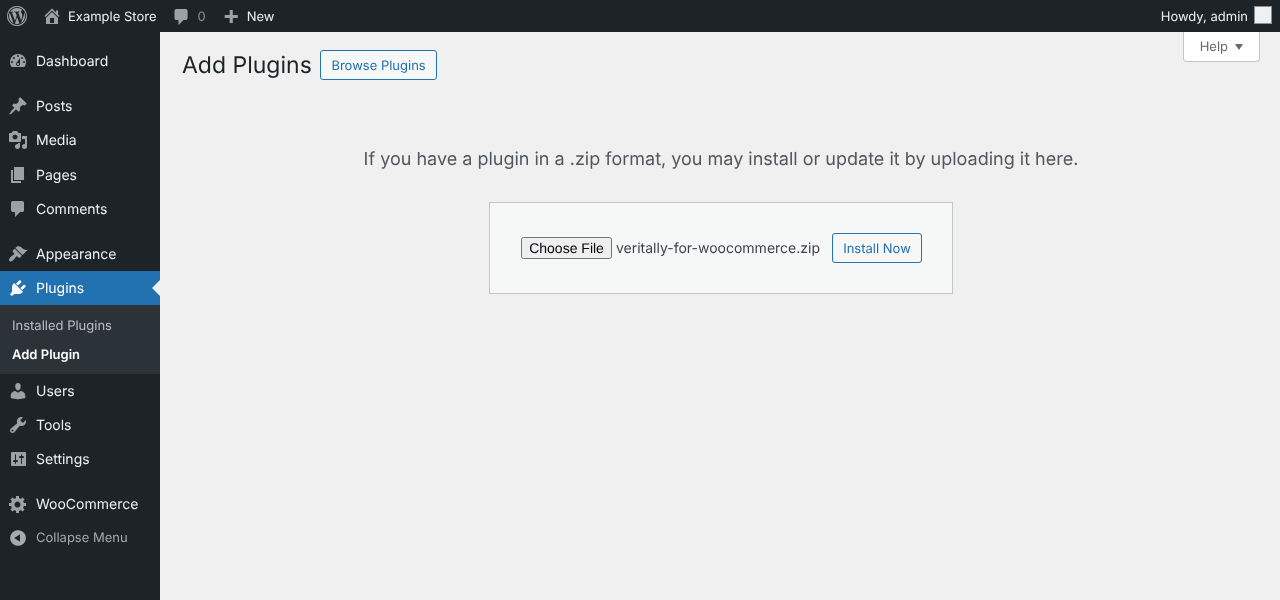
Download the free plugin from veritally.in/woocommerce. In WordPress, go to Plugins > Add Plugin, press Upload Plugin, choose the file veritally-for-woocommerce.zip and press Install Now.
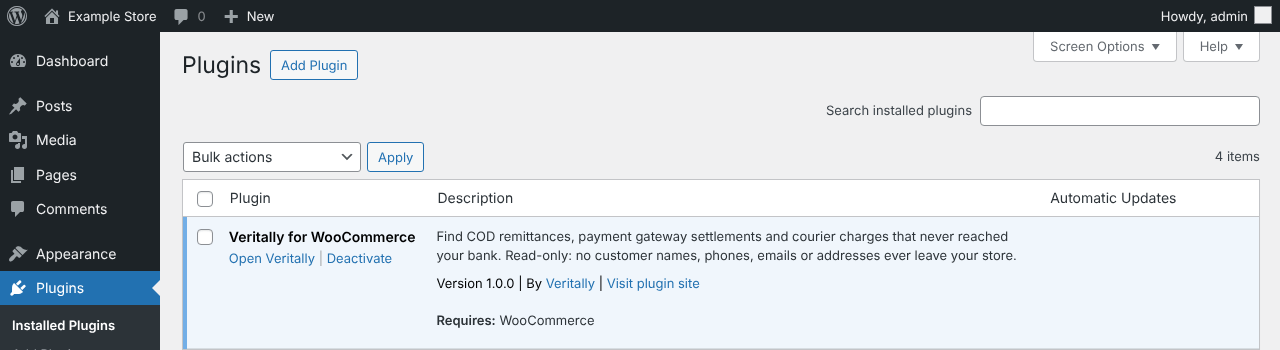
When WordPress says the plugin is installed, press Activate Plugin. Veritally now appears in your plugin list with an Open Veritally link, and under WooCommerce > Veritally in the menu.
Step 2: Connect your store
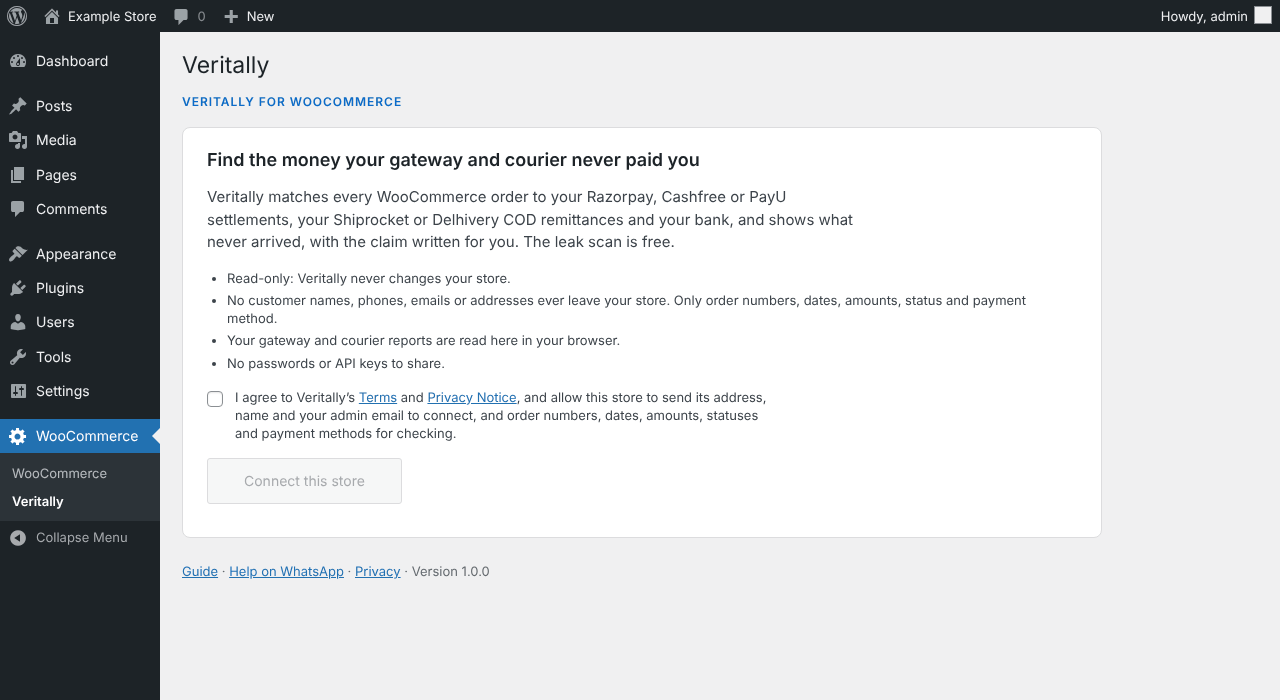
Open WooCommerce > Veritally. Read what Veritally sees, tick the box to agree to the Terms and Privacy Notice, and press Connect this store. Connecting sends your site's address and name and your admin email, so we can tell your store apart and reach you about it. No password or API key is involved.
Step 3: Read your orders
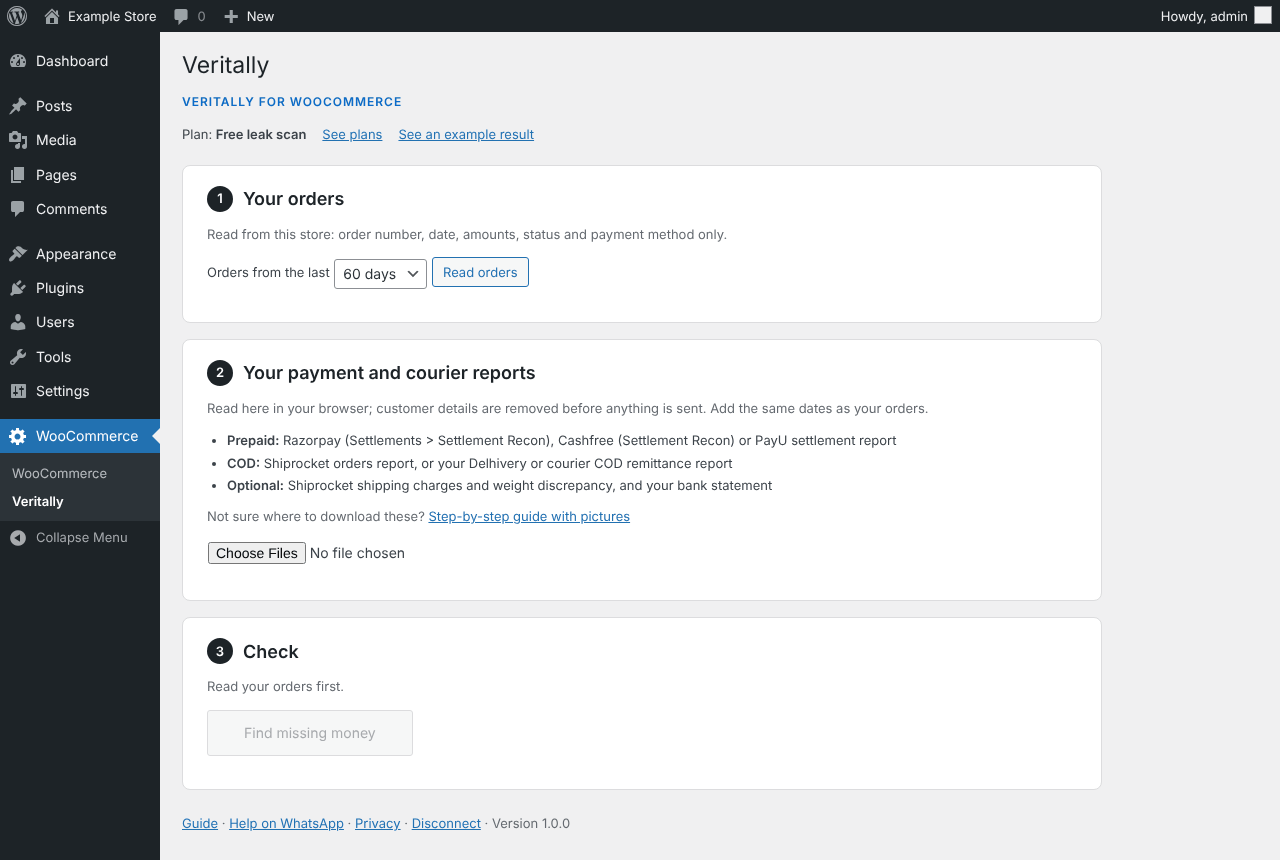
Choose how far back to check (30, 60, 90 or 180 days) and press Read orders. Veritally reads each order's number, date, amounts, refunds, status, payment method and the gateway's payment ID. A large store takes a few seconds.
Step 4: Add your payment and courier reports
Press Choose Files and pick the reports you downloaded. You can add several at once. Veritally recognises each one by its columns and shows what it found, for example "Razorpay settlements, 135 rows". A file it does not recognise is listed as such and left out.
| Report | Where to download it |
|---|---|
| Razorpay Settlement Recon | Razorpay Dashboard, Reports, Settlement Recon, for the same dates |
| Cashfree Settlement Recon | Cashfree Merchant Dashboard, Reports, Settlement Recon |
| PayU settlement report | PayU Dashboard, Settlements, download the report |
| Shiprocket orders report | Shiprocket, Orders, Export, for the same dates |
| Shiprocket shipping charges and weight discrepancy | Shiprocket, Billing |
| Bank statement | Your net banking, as Excel or CSV |
Menu names change from time to time; if you can't find a report, search the dashboard's help for its name or ask us on WhatsApp.
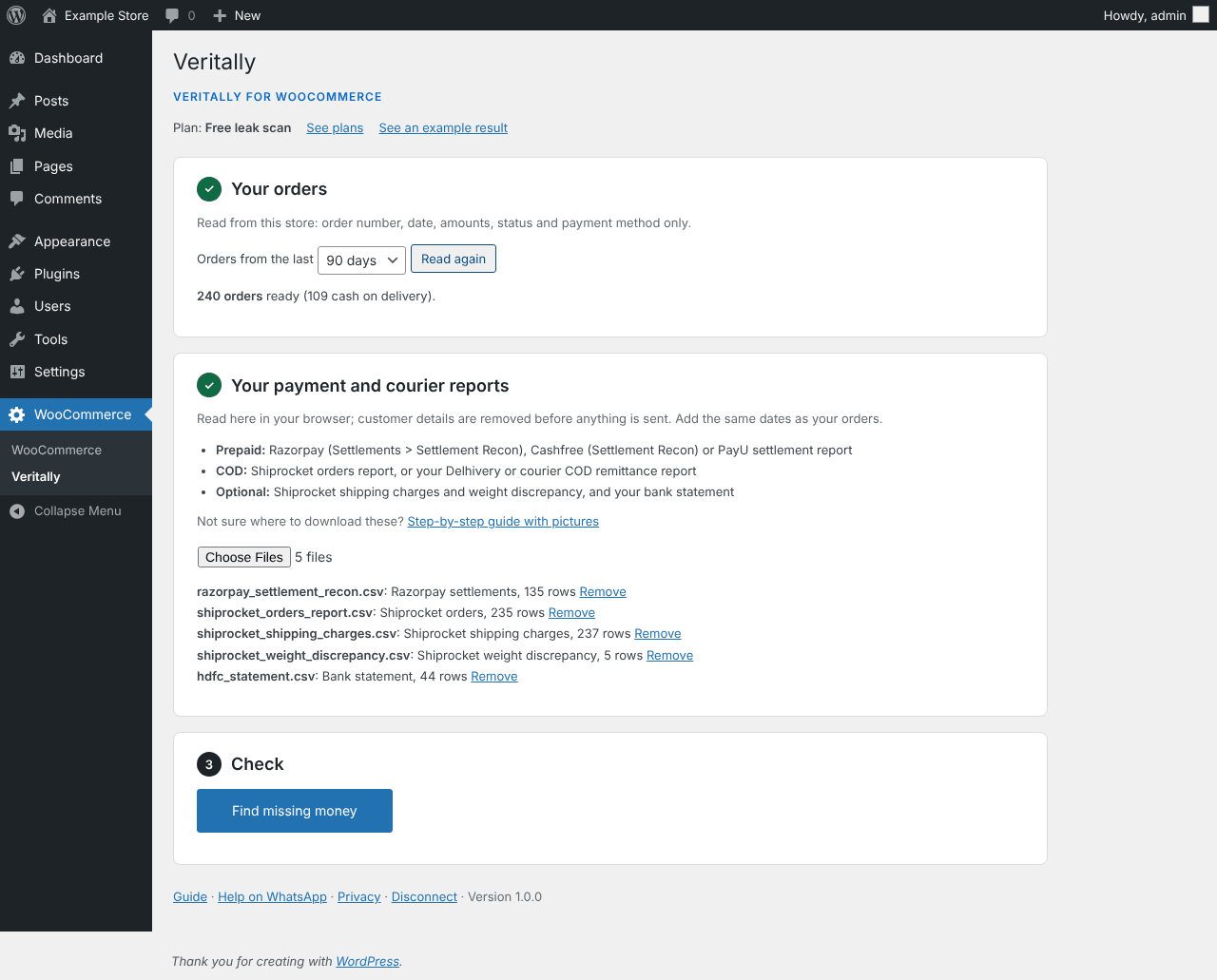
Step 5: Find the missing money
Press Find missing money. The free leak scan shows the total that didn't reach you and splits it by type: prepaid settlements, COD remittances, freight and weight, and bank receipts.
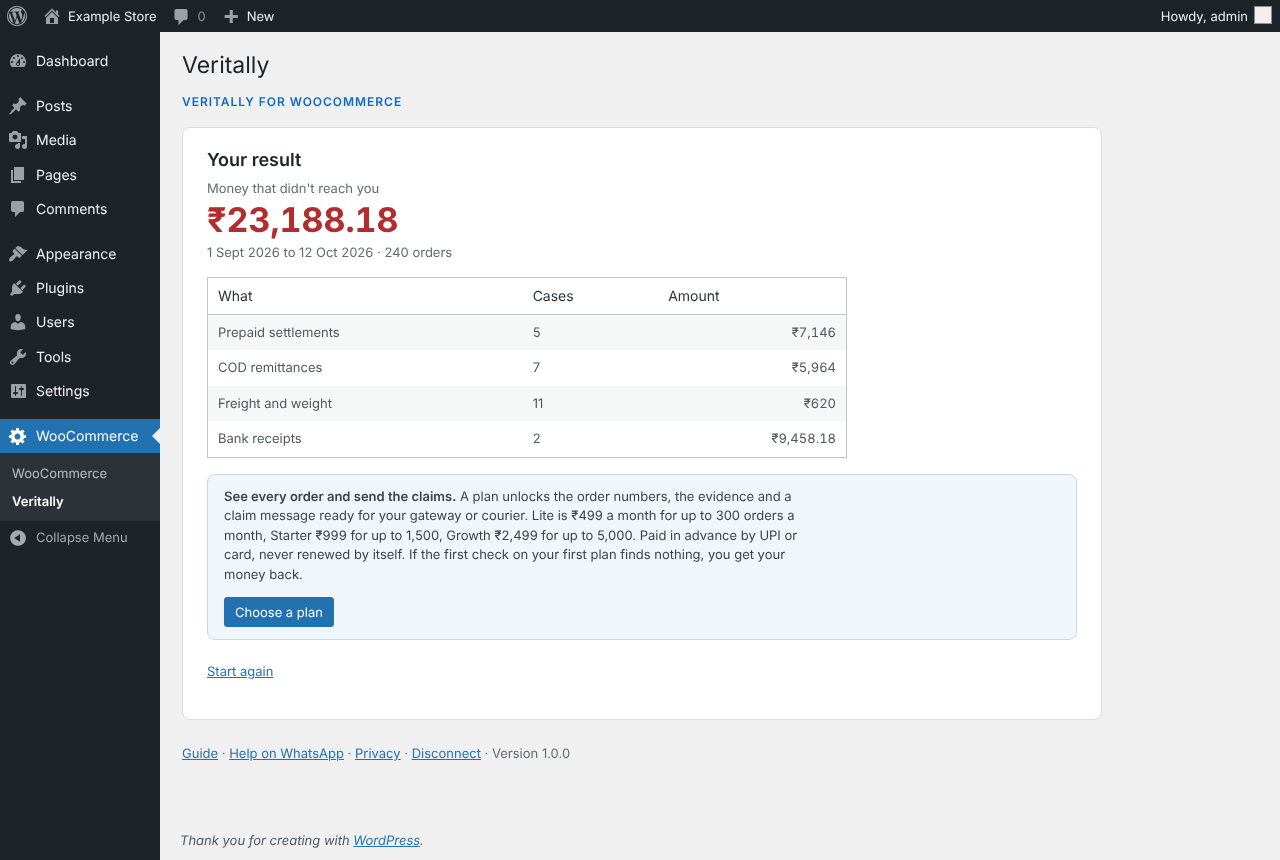
Step 6: See every order and send the claims
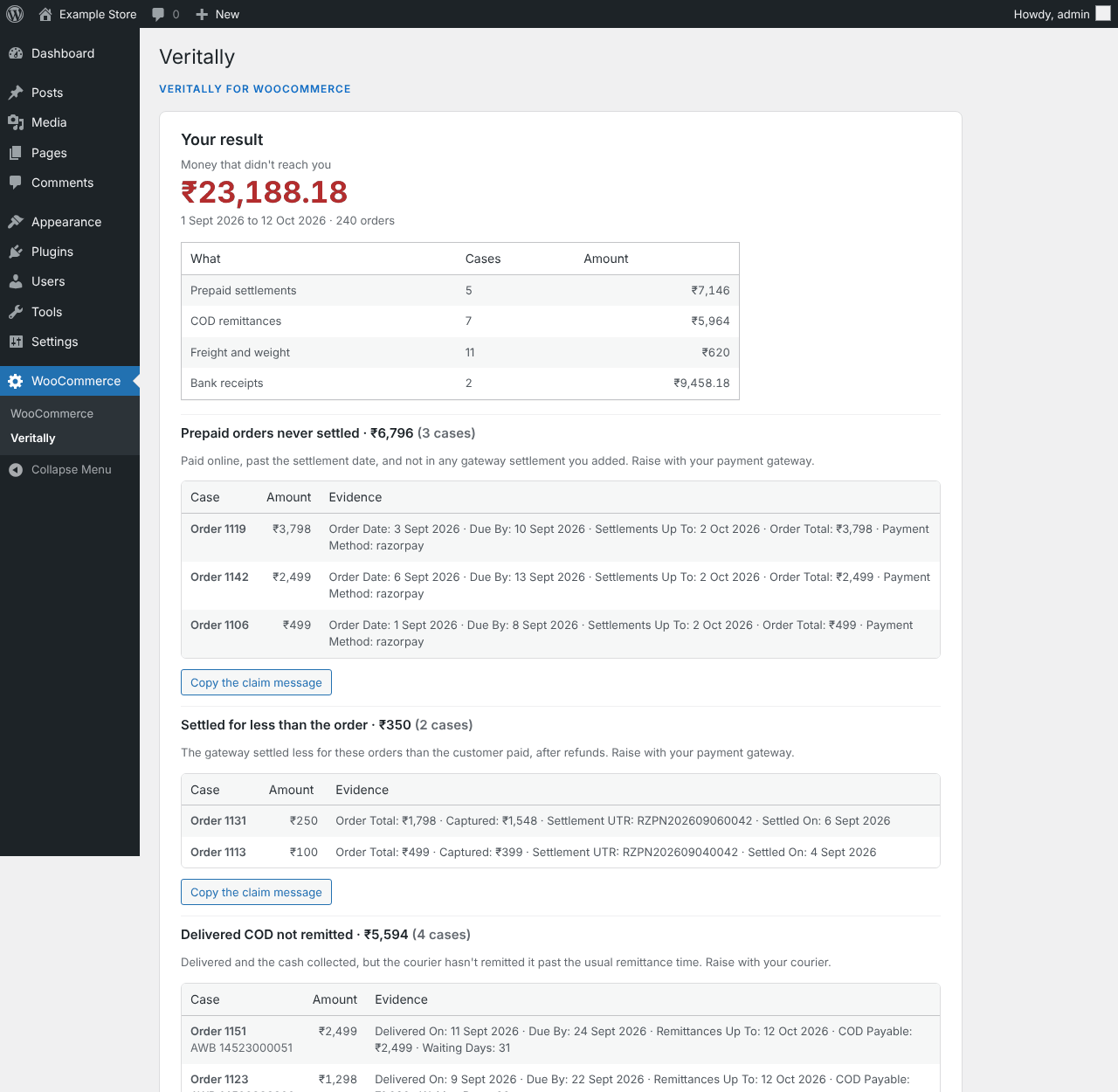
A plan shows every order behind each total, the evidence from your reports, and a claim message for your gateway or courier, ready to copy. You can also download every case as a CSV for your accountant. Press Choose a plan in the leak scan to buy one on veritally.in with UPI or card. Plans are paid in advance and never renew by themselves.
If something goes wrong
| What you see | What to do |
|---|---|
| "Veritally for WooCommerce needs WooCommerce" | Install and activate WooCommerce first |
| "This store is no longer connected" | Press Connect this store again; nothing is lost |
| A report listed as not recognised | Check it is the report named above, as downloaded, not edited |
| Orders in another currency are skipped | Veritally checks INR orders only |
| Anything else | Message us on WhatsApp from the link at the bottom of the Veritally page |
To stop using Veritally, press Disconnect, or deactivate and delete the plugin. Deleting it removes everything it stored on your site.
Frequently asked questions
Is the Veritally WooCommerce plugin free?
Yes. The plugin and the leak scan are free. A plan, paid in advance, shows every order and the claim messages: Lite for up to 300 orders a month, Starter for up to 1,500 or Growth for up to 5,000. If the first check on your first plan finds nothing, you get your money back.
Does it work with the official Razorpay plugin for WooCommerce?
Yes. The Razorpay plugin saves the payment ID (it starts with pay_) on each order, and Veritally matches that to the Settlement Recon report. Without it, Veritally falls back to the order number in the report's receipt field.
Will the plugin slow down my shop?
No. It only runs when you open WooCommerce > Veritally in your admin, and adds nothing to the pages your customers see.
Can my shop manager use it?
Yes. Anyone who can manage WooCommerce can open Veritally. Customers and subscribers cannot.
Is it on the WordPress.org plugin directory?
It is on its way to the WordPress.org plugin directory. Until it is listed, download it from veritally.in/woocommerce; the plugin is the same.